This guide will walk you through the step-by-step process of downloading, installing, and setting up Anki, AwesomeTTS add-on, and Yomitan browser extension for both Windows & Mac.
Download Anki
Go to Anki – powerful, intelligent flashcards
Click Download Anki
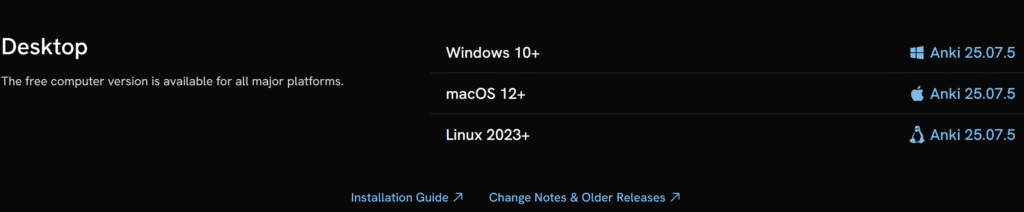
Choose to download Windows or Mac
Windows:
At the time this guide was created, the most current version was Version 25.07.5.
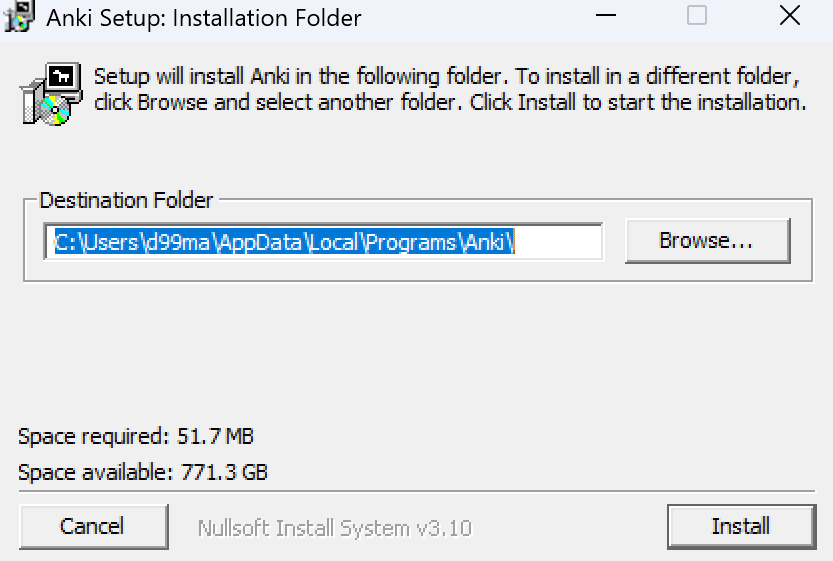
Now that you have downloaded the installer, find it in file explorer and double click to begin installation. A window will popup that looks like this, prompting you to select a destination folder for the application. You can leave this as is and click Install.
Upon pressing Install a window will pop up that will download & install the required files/packages. It will look something like this upon completion.
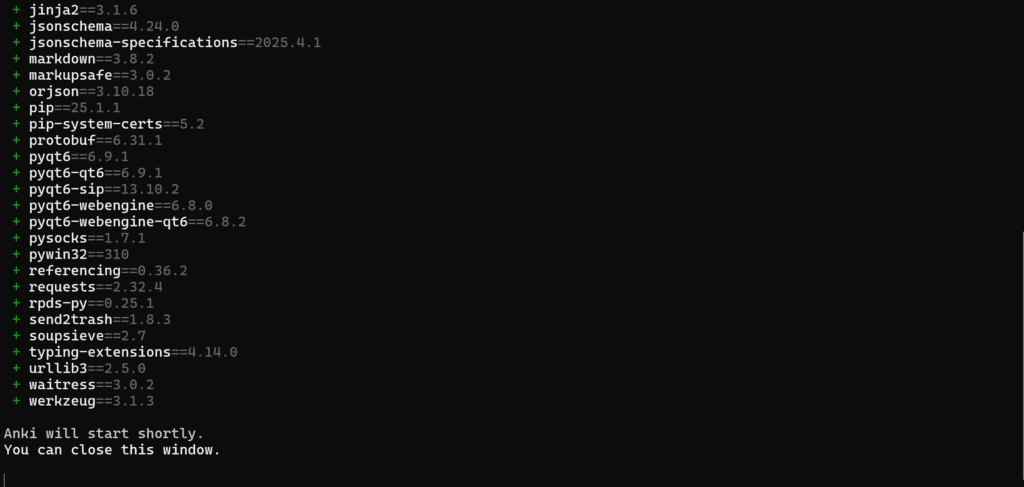
Shortly after completion this window should automatically close, upon which Anki will start up.
Once Anki starts up, it should look like this
SCREENSHOT
Next, lets install AwesomeTTS
In Anki, click Tools->Add-ons, then click Get Add-ons.
SCREENSHOTS
In the Install Add-on pop-up window, enter the following code 1436550454 and click OK.
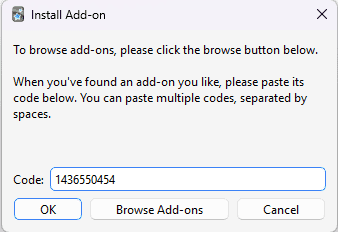
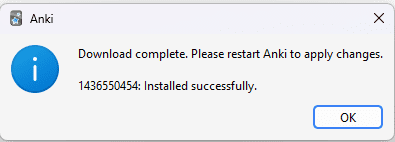
Upon successful download, click OK, then restart Anki to apply changes.
You should see the following in the add-ons window
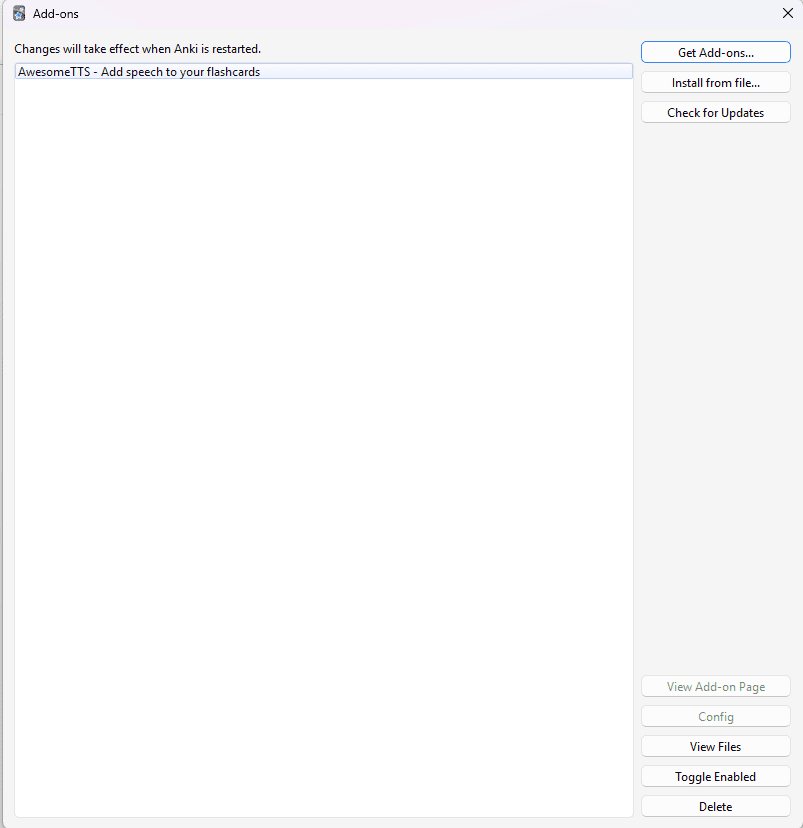
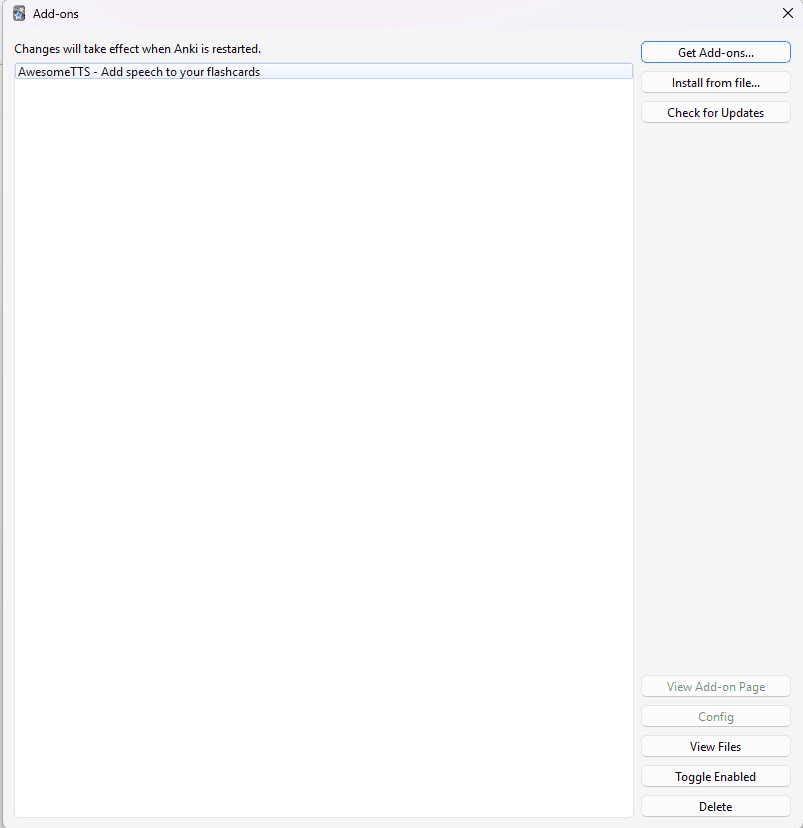
AwesomeTTS
Next, lets download Yomitan. https://yomitan.wiki/
The home page of this site should look like this. As you can see, Yomitan is compatible with chrome, firefox, and edge. We will be downloading and installing Yomitan on Edge for this tutorial. Whichever browser you are using, click that download.
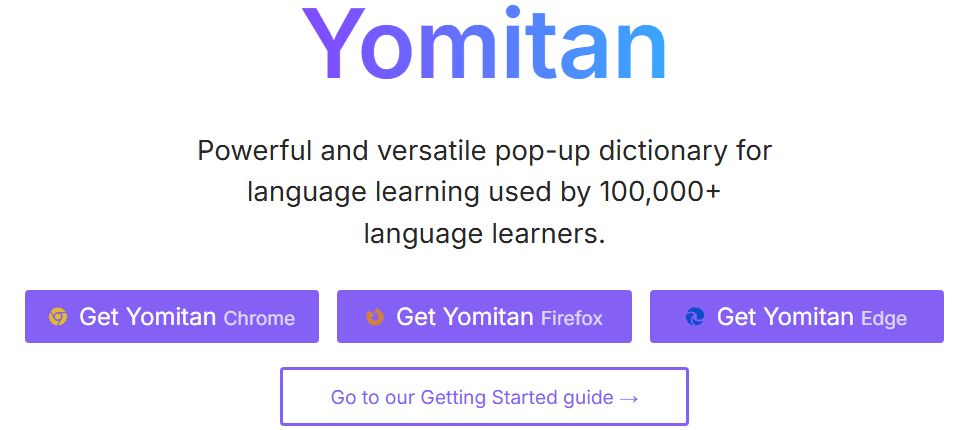
Clicking on one of these links will direct you to your browsers add-on/extension store.
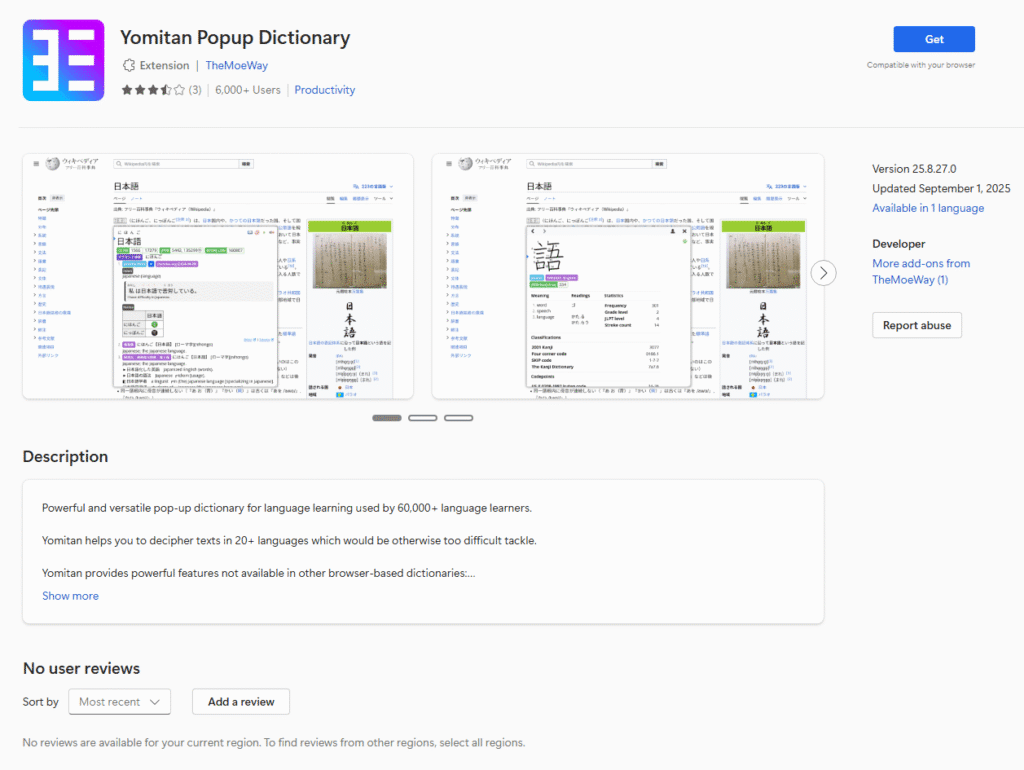
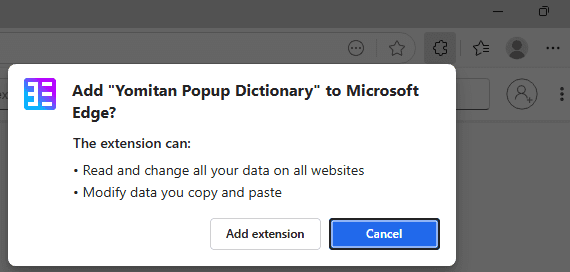
Upon clicking Get, a popup should appear in the top right of your screen. Click Add extension
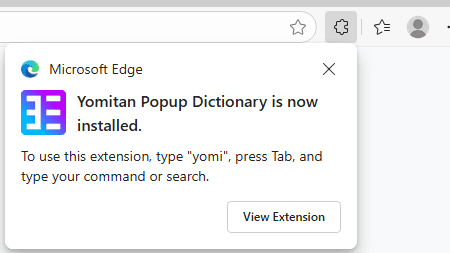
Clicking View Extension will bring you to the Yomitan extension settings page.
Now that we have the extension installed, we have to install Japanese language dictionaries and configure the settings for how the popup appears in our browser, as well as interfacing with Anki and how the cards are created automatically. For this we must download the AnkiConnect add-on for Anki